Documentation
The Invoice X manual.
A walkthrough of the whole tool, screen by screen — from connecting Xero to pushing a repriced book back.
Overview
Invoice X does one job: it bulk-edits the prices on your Xero repeating sales invoices and writes the result back safely. Xero has no bulk edit for repeating invoices and no API call to update one, so the yearly price rise is otherwise a manual, template-by-template job with no preview.
The workflow is five steps: connect → load → select → preview → push.
1 · Connect Xero
Setup happens entirely in the app. Create a Web app in the Xero developer portal, register the redirect URI the setup screen shows you (character for character), then paste in the Client ID and Client Secret and authorise with Xero. Invoice X requests offline access so the connection stays alive, and only the scopes needed to read and rebuild repeating sales invoices.
- Your Client Secret is stored server-side and never returned to the browser.
- If your Xero login reaches several organisations, a picker appears so you choose which to load.
- Switch account drops the Xero token but keeps your app credentials.
2 · Load your book
Sync from Xero pulls every repeating sales invoice (ACCREC) into the workspace. Bills (ACCPAY) are counted and skipped — you'll see "N bills skipped" in the header. Loading replaces the workspace, so run it once when you're ready to work; any unpushed changes are discarded.
Each template's schedule and annual value are computed on load, and a multi-currency book is scoped per currency so you never work against a total summed across currencies.
3 · Read the register
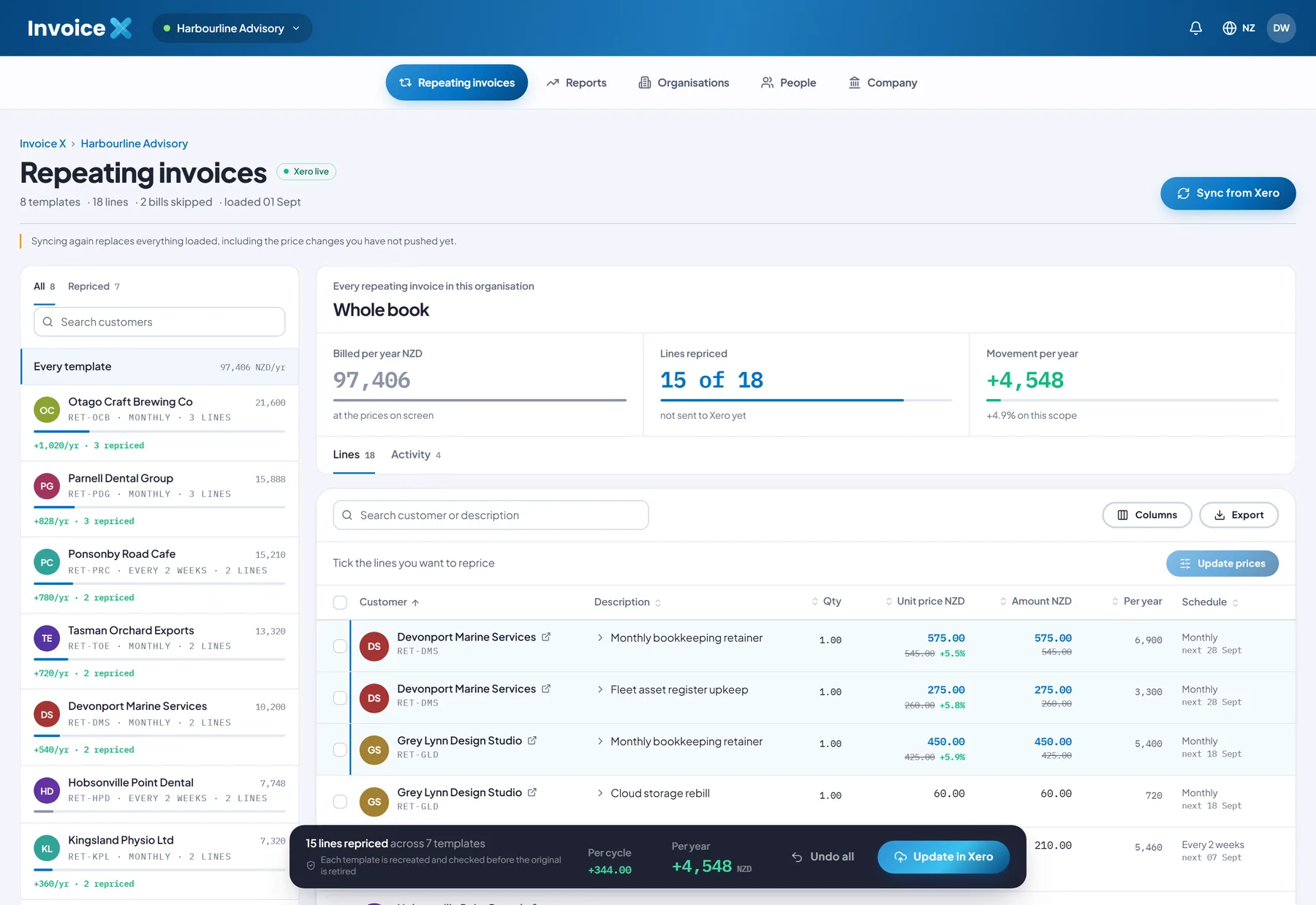
The register has three parts:
- The navigator (left) — every template with its reference, cadence, annual value and how many of its lines are repriced. Filter by All / Repriced, or search by customer.
- The scope panel (right) — headline totals for whatever the navigator has selected: billed per year, lines repriced, and movement per year.
- The push slab (foot) — a running reminder of how many lines are changed and that nothing has reached Xero yet.
4 · Select the lines
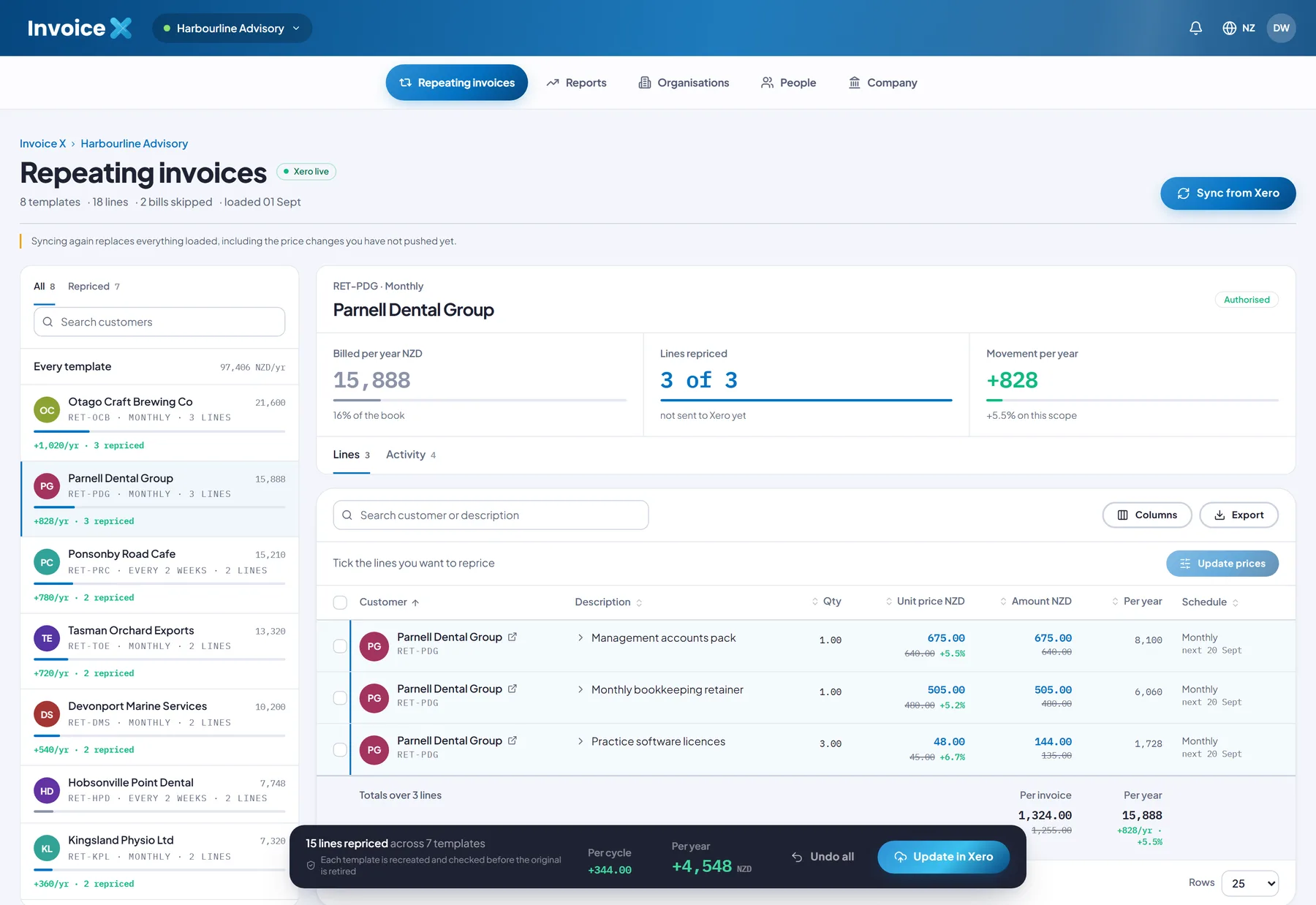
In the lines table, tick the rows you want to reprice — you can select across templates, or tick the header box to select everything in view. Selection is by line, not all-or-nothing, so you can leave a fixed-price contract or a zero-rated export line out of a percentage rise.
5 · Run the update
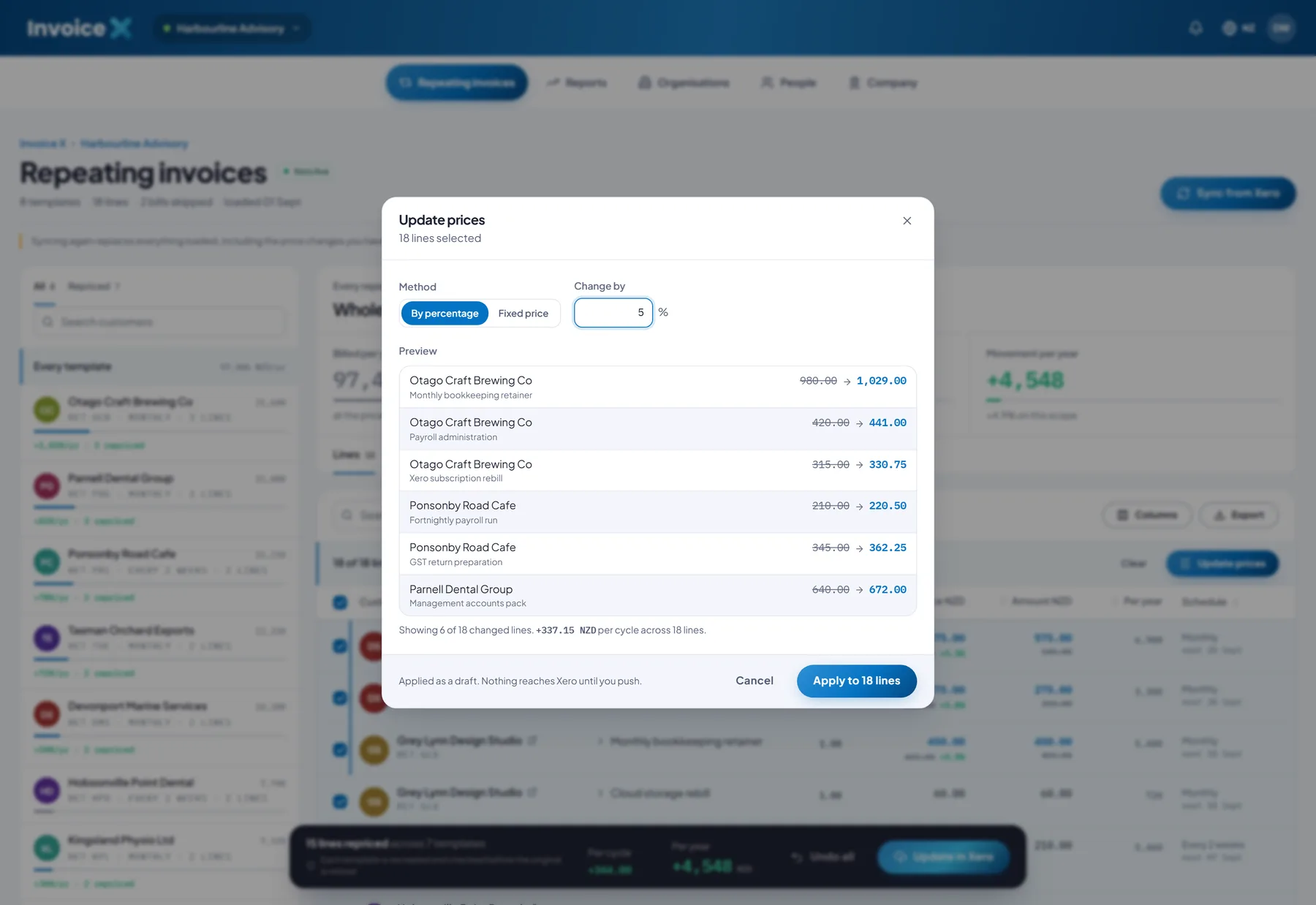
Open Update prices and choose a method:
- By percentage — raise or cut every selected line by a rate. A negative rate cuts.
- Fixed price — set every selected line to the same unit price.
6 · Advanced rules
For percentage updates you can add, in this fixed order:
- Minimum increase — a floor on the dollar movement, for when a rate produces too small a change.
- Round to — 50c / $1 / $5 / $10, applied last.
- New prices start — the date the replacement begins billing.
Rounding never reverses the change. If a rounding step would push a rise below the original price, the original price stands instead. And a start date is ignored for any template whose next run is already later than it, because moving a start date backwards would make Xero re-bill periods it has already invoiced.
7 · Check the preview
The dialog asks the engine for the outcome as you type and lists the old and new price for every line, plus the total movement per billing cycle. It runs the identical calculation that Apply uses, so the preview cannot drift from the result. Applying a change stages it as a draft — still nothing in Xero.
8 · Push to Xero
When the register looks right, press Update in Xero. Each changed template is written as create → verify → retire: build the replacement, read it straight back, check it field by field, and only then mark the original deleted. A failed check rolls that template back and leaves the original running — a customer is never double-billed or dropped.
A push is three Xero calls per template and runs sequentially to stay inside Xero's rate limit; progress is reported per template. Undo all discards every pending change before a push.
9 · Forecast reports
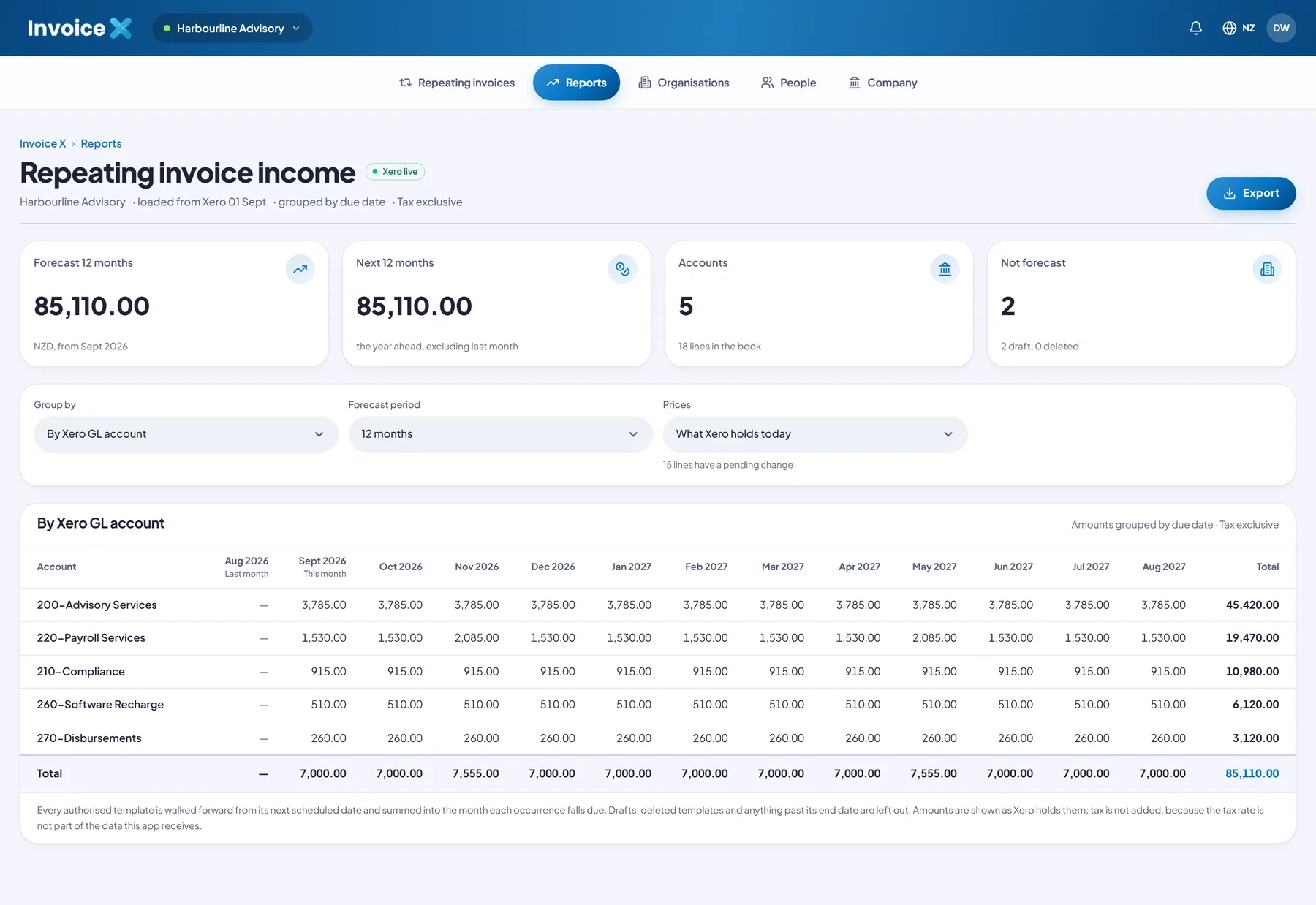
The Reports tab projects every authorised template forward from its next scheduled date and sums each occurrence into the month it falls due. Choose the grouping (by Xero GL account, by customer, or by currency), the horizon (12 / 24 / 36 months), and whether to use the prices Xero holds today or the prices with your pending change applied. Every view exports to CSV.
10 · Team & audit trail
One plan includes up to 5 users sharing a single workspace. Every price run and every push is recorded against the person who made it, including partial pushes where some templates were refused. There are no roles — everyone in the company can run and push, and can add or remove other users. Users are deactivated rather than deleted, so the trail stays attributable.
Sample-data mode
Before you connect Xero — or subscribe — you can press Load sample data to work with eight sample repeating invoices across weekly, fortnightly, monthly, quarterly and annual cadences. A push in sample mode runs the full create-verify-retire rehearsal without calling Xero, so you can see exactly how the workflow feels first.
Try it on sample data, then subscribe.
Explore the full interface before you connect Xero. $29/month when you're ready.
$29/month · Up to 5 users · One simple plan